To make use of this new Chat Lock feature, follow these simple steps:
- Open the chat you want to lock and tap "Chat info."
- Look for the "Chat lock" option and tap on it.
- Choose between "Lock this chat with fingerprint" or "Lock This Chat with Face ID," depending on your device's available biometric authentication method.
- Once the chat is locked, you can find it in the "Locked chats" folder.
- To access the locked chat, tap on it and select "View" when prompted.
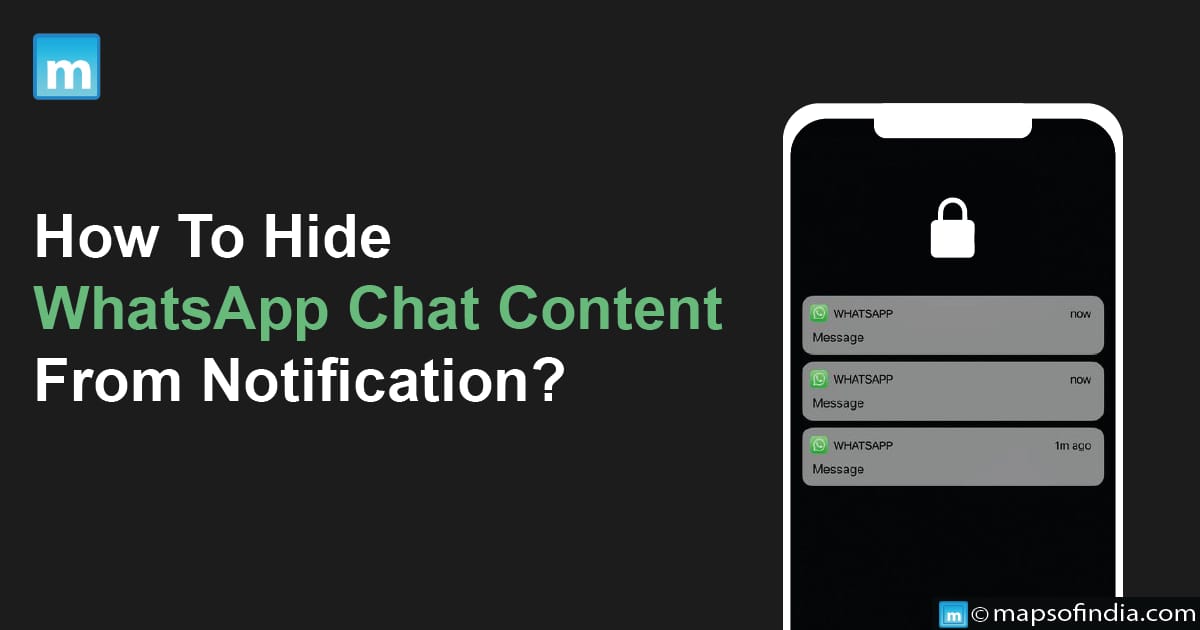
How to Turn Off WhatsApp Message Preview on Android's Lock Screen
- Access the phone's settings: Open the settings menu on your Android device to get started. This is typically accessible by swiping down from the top of the screen, clicking the gear-shaped icon, or searching for it in the app drawer.
- Find WhatsApp in Apps & Notifications: Track down the "Apps & Notifications" or comparable item by scrolling down the settings menu. To access the app settings, tap on it.
- Go to WhatsApp Notifications: Find WhatsApp in the list of installed apps under "Apps & Notifications" in the menu. Tap WhatsApp once you've located it to view the notification settings.
- Disable Show Notifications: You can choose from several parameters connected to notifications in the WhatsApp settings. Find the "Show Notifications" toggle switch and flip it off. If you disable this option, you won't see WhatsApp message previews on your lock screen or in the notification panel.